Do a Job · Everyday · 4 min
Find what changed between two revisions
Put one sheet against another and get a list of the places that look different, each a click away.
Rev D arrives for a sheet you have already measured. Instead of flicking between two PDFs, compare them: you get a list of the places that look different, and each is a click away on the drawing.
- Open the sheet you want to check.
- Choose File › Compare with another sheet…, pick the other PDF, and which of its pages to compare against.
- Say how the two sheets line up (below). The same paper in the same place needs nothing more.
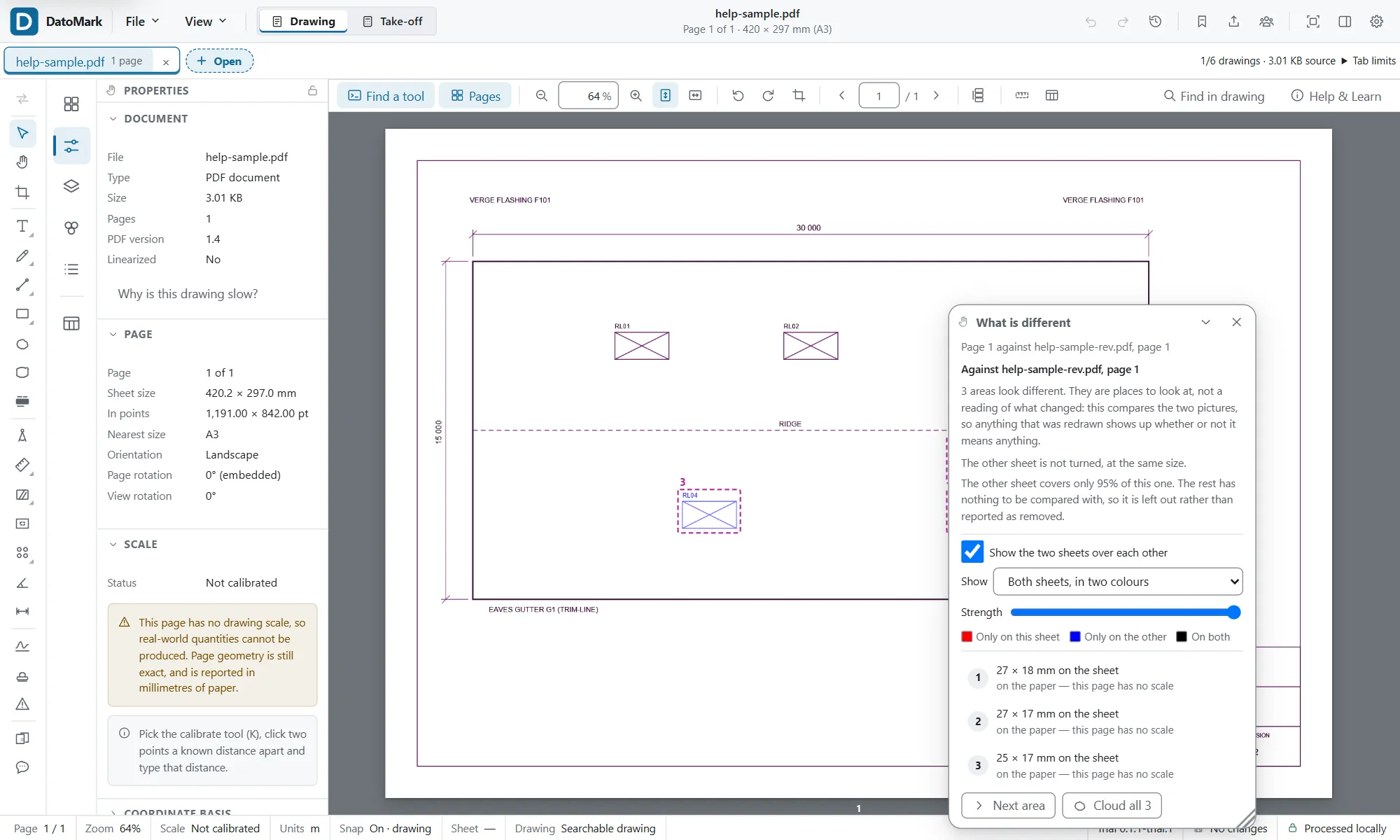
- The two sheets are drawn over each other: red where only this sheet has ink, blue where only the other has, black where both do. The Strength slider fades the picture out to this sheet alone.
- Walk the list. Each row takes you to that area on the drawing.
- Cloud the ones that matter. They become ordinary revision clouds on the sheet.
When the two sheets aren’t in the same place
A revision re-plotted with other margins, a sheet at another size, or two disciplines drawn on one grid but placed differently on the paper are the same drawing to you and different everywhere to a picture comparison. So choose They aren’t: I will mark two points that are the same on both. Both sheets are shown side by side; scroll to zoom, drag to move a sheet, and click the same two features on each: opposite corners of a grid, or the two ends of a long dimension. The further apart the two points, the more exact the match.
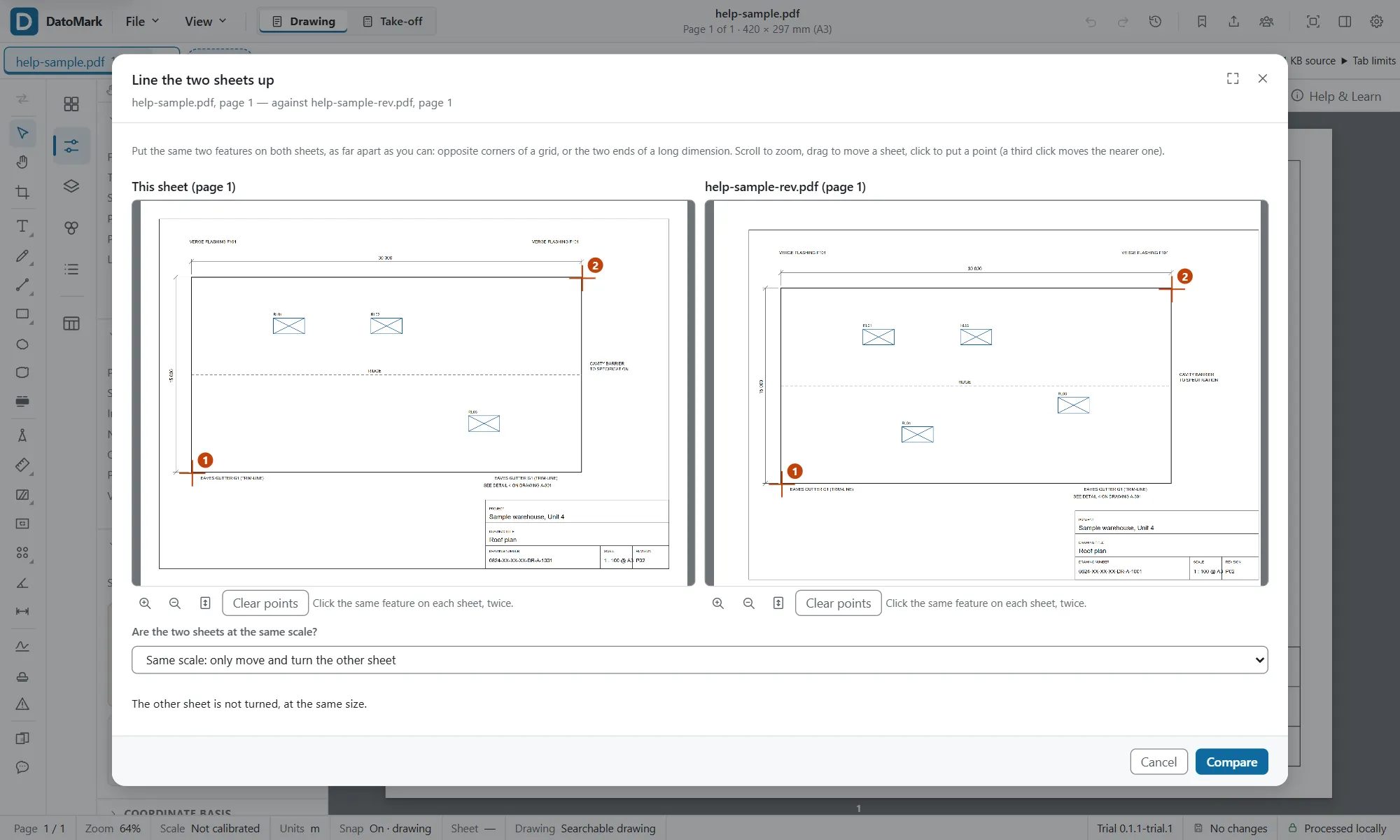
- The window says what it worked out: how far the other sheet is turned, and whether its size was changed.
- Same scale only moves and turns the other sheet. If the two pairs of points aren’t the same distance apart, it says so: either a click slipped, or the scales differ.
- Different scales also resizes the other sheet so the two pairs of points land exactly, for an A1 plot against an A3.
- Where the other sheet doesn’t reach this one there’s nothing to compare, so that part is left out and the result says how much was compared.
Nothing is altered on either drawing: the areas found aren’t markup and aren’t exported. They go when you close the panel.
In DatoMark Compare with another sheet