Learn · New to this · 4 min
Finding your way around the screen
The parts of the window, what each is for, and the three shortcuts that find anything.
The window has the same few parts whichever drawing you’re on. Each can be moved or hidden once you know what it is for. The numbers below are the numbers in the picture.
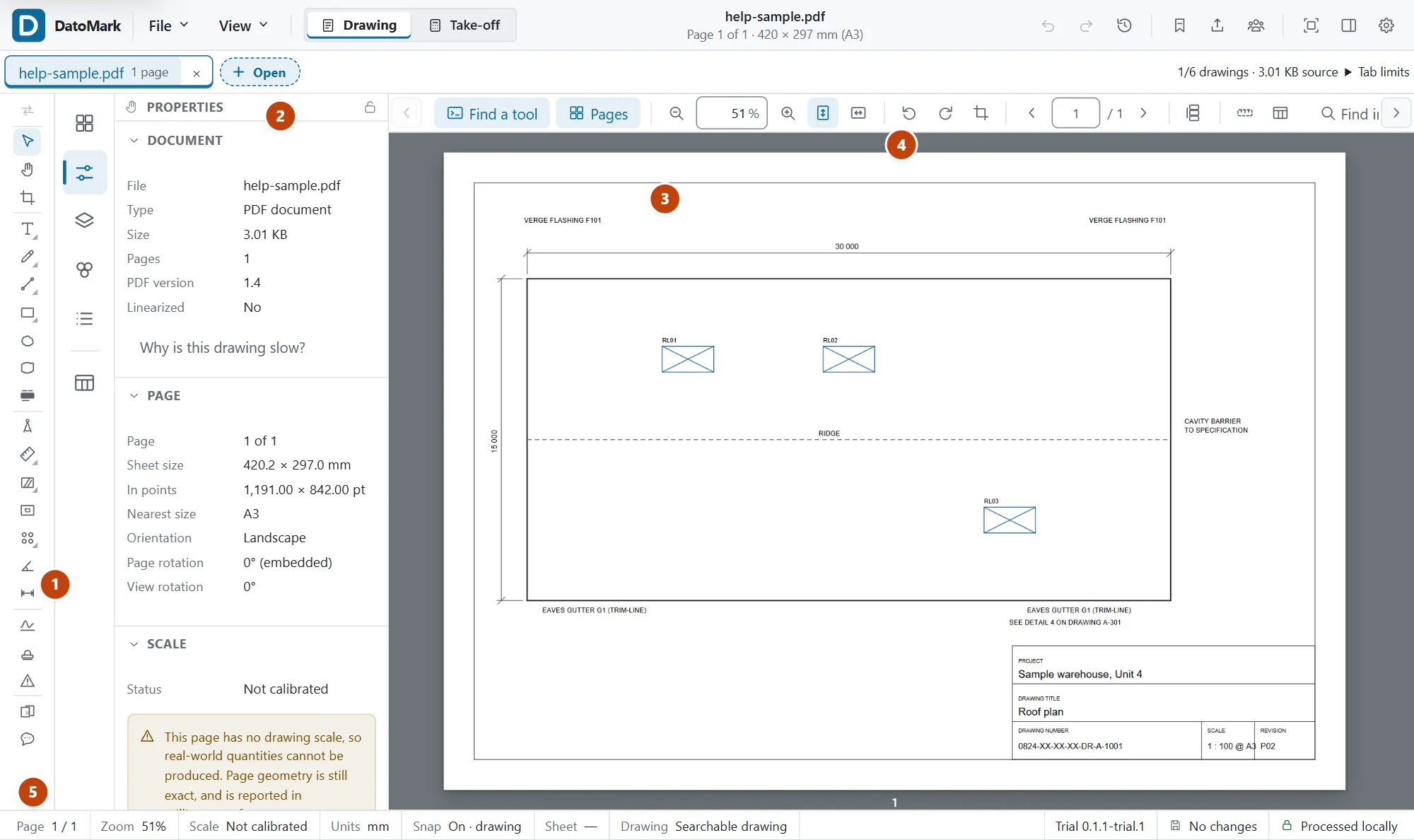
The top bar
- File and View menus on the left: opening, saving, exporting, and every panel and layout option.
- Drawing and Take-off: the two places you work. Drawing is the sheet; Take-off is the bill built from what you measured.
- The name of the drawing, its page and paper size in the middle, and undo, redo and the action log on the right.
The tool rail (1)
The column of icons at the edge holds every tool: select, pan, text, shapes, scale, length, area, count and more. Hover over one to see its name and key. The rail can sit on any of the four edges.
The side panel (2)
One panel holds the places you look things up, and the small icons down its edge switch between them. The right of the window is left free for you.
- Pages: every sheet as a thumbnail.
- Properties: what the file is, the page, the scale, and whatever you have selected.
- Layers, Groups and Contents: the drawing's own layers, your take-off groups, and the sheet list.
- Register and Review open when you need them, and any panel can be pulled out and placed where you like.
The toolbar (4)
Across the top of the drawing: Find a tool, the Pages button, zoom and fit, turning the sheet, the page box, how pages are laid out, and the style controls for whatever you’re drawing or have selected.
The drawing (3)
The sheet itself. Scroll to move up and down; hold Ctrl and scroll to zoom; drag with the middle button, or hold Space and drag, to pan. Everything you measure or mark up is drawn on it, and none of it changes the file you opened.
The status bar (5)
Along the bottom: the page, the zoom, the scale (click it to calibrate), the units, snapping (click to turn off), the position of the cursor on the sheet, what this drawing can tell us, whether your work is saved, and “Processed locally”.
Three ways to find anything
| Ctrl+F | Find anything: every command, tool, setting and help page, by what it does. |
|---|---|
| Ctrl+Shift+F | Find in drawing: words on the sheet itself. |
| F1 | Help, and when your pointer is on a control, help about that control. |
In DatoMark Try Find anything