Do a Job · Everyday · 5 min
Redact: take names and numbers out of a copy
Black out what must go, check it, and make it really gone, with the proof.
Drawing a black box over words doesn’t remove them: the words are still in the file, and anyone can select, copy or search them. Redaction here deletes them from the page itself, the way professional software does, and then checks the result. The marked areas show as black as soon as you mark them; Redact now makes that real. The original file on your computer is never changed, and Undo brings the original pages back until you close the drawing.
Mark what must go
- By hand: pick Redact and drag a box over the area. It shows as black at once. Choose Outline in the bar at the bottom to see the words under it again.
- By words: open Find, search, open Replace and redact and choose Mark all (or Mark this one). Words are marked whole, with a little room round them.
- By shape: in the same fold, choose what to look for (email addresses, phone numbers, UK postcodes, dates, web addresses, long numbers) and mark the results. Look through them first: a shape finds anything that looks like one.
- From a selection: with text selection on, select words and choose Black out on the little bar, which says how many words are selected.
A mark is an ordinary box: move it, resize it, delete it, undo it. Until you press Redact now, the words are still in the file. Review in the bar lists every marked area with the words it covers: point at a row to see it on the sheet, click to go there, or take it off.
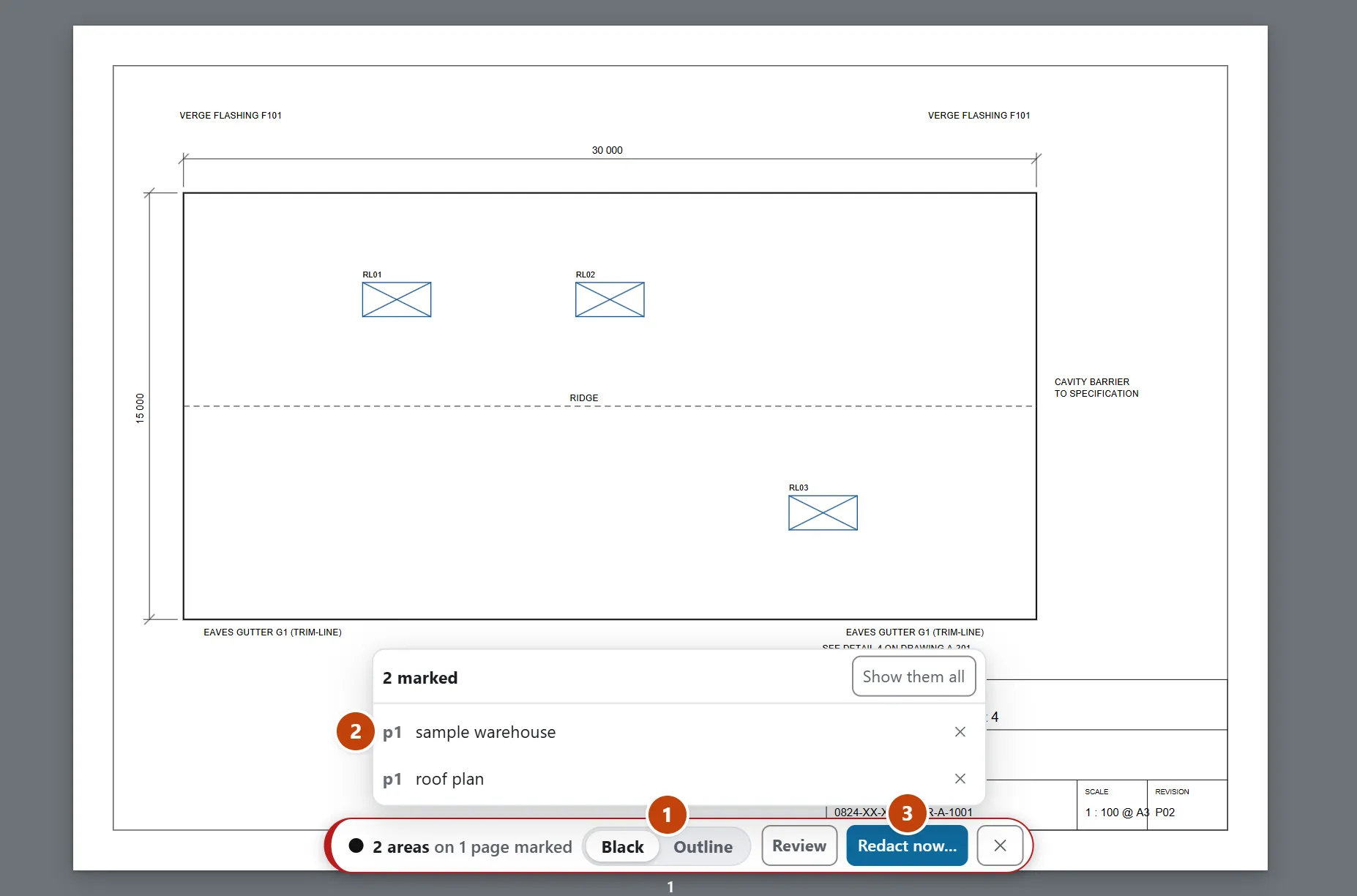
Redact now
- Press Redact now… in the bar at the bottom, or choose File › Redact now…. It says how many areas on how many pages, and exactly what will happen.
- Leave Also save a copy off to change this drawing only, or tick it to save the redacted drawing as a file too. Picture quality is under Picture quality.
- It’s read back first: if it fails any check nothing is changed, and you’re told why. Your own markup and measurements stay where they are.
- Changed your mind? Undo in the message that appears puts the original pages and your marks back, as long as the drawing stays open.
A drawing with replaced words, or a page turned inside the file, is redacted as a copy that opens beside it, and the dialog says why.
What the redacted pages are, and what they aren’t
- Where the words are real text, the letters under the black are deleted from the page's own content, hidden text and hidden layers included, and the black box is drawn over the gap. The rest of the page stays as it was: still sharp, still searchable, and the words either side haven’t moved.
- A page that can’t be edited with certainty is drawn as a picture with the black on it instead, which leaves nothing underneath whatever the words were made of. That’s any page with a picture or a placed drawing under the box, a scan, a font whose widths can’t be read, or a page turned inside the file. The result says which pages, and why.
- A line that only passes under a black box is left in: it carries no words and the black covers it. A line or shape wholly inside the box is deleted.
- Pages with nothing marked are copied as they are.
- The document properties, bookmarks, attached files and comments are not carried over: the result is built from the pages only, so nothing nobody thought of can come along.
- Afterwards the result is opened with a separate reader: the words must not be found anywhere in it, a second walk through the edited pages must find no letter left under a mark, pages drawn as pictures must have no text, nothing may be in its properties, there are no bookmarks or attachments, and every box must be black. The result shows each check.
Find and replace
Find can also put new words over old ones, as Edit Existing Text does: a covering note that starts in the old size. On screen the old words are still there under the plate (so nothing is lost and it can be undone). When you export the marked-up copy, the old words are taken out of the page itself, so they can’t be selected or searched in the file; if a page can’t be edited safely, the export says so and the plate stays. Redact now makes it permanent in the drawing you have open. Words set at an angle are left alone. A long replacement can overlap neighbouring content: check the appearance before sharing. For confidential removal, use the redaction workflow rather than relying on a covering note.
In DatoMark Redact now