Do a Job · Everyday · 3 min
Use two screens
Put the program on one screen and Help, or a second view of the drawing, on the other.
A browser app is one window, but you can still use two screens well.
Help on the other screen
- Press F1 to open Help.
- Choose Open in its own window at the top right. A real window opens.
- Drag it onto your other screen and make it as large as you like. It follows your light or dark choice and keeps working: the Do it buttons still run the thing in the main window.
- To put it back, choose Bring back into the program or just close it.
If nothing opens, your browser has blocked the pop-up. Allow pop-ups for this page and try again; Help stays inside the program until then.
A second look at the drawing
View › Side view… keeps a second view of the drawing next to the first, for looking at two parts of a large sheet, or two sheets, at once. Scrolling and zoom can be locked together.
Using the whole screen
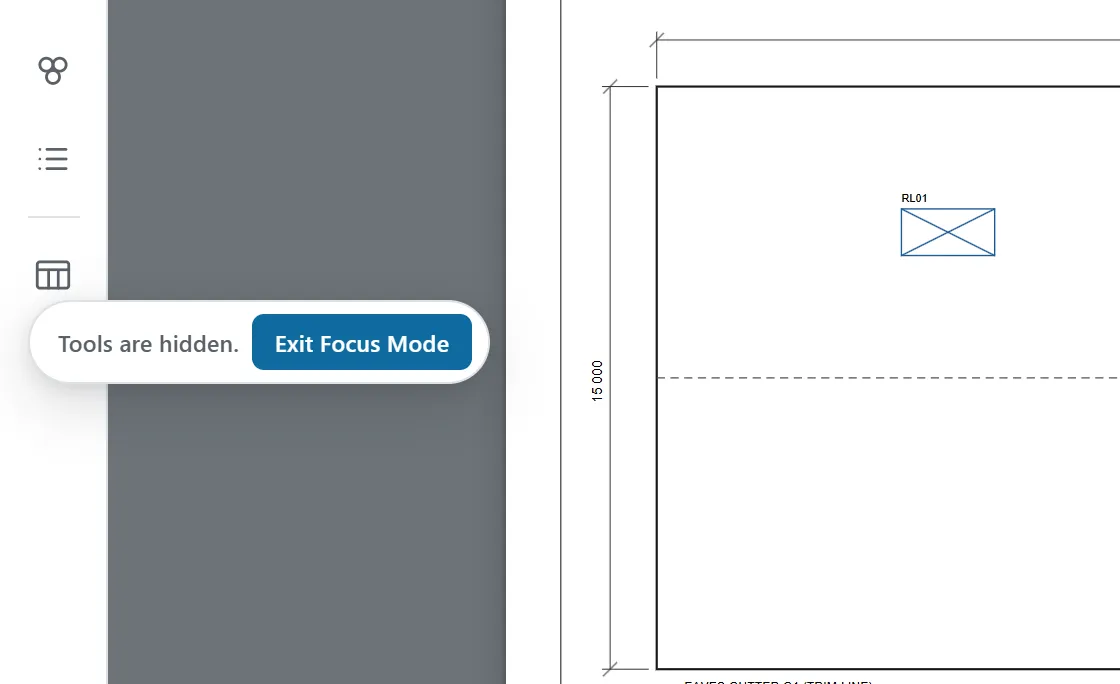
F11 makes the browser full screen, and Focus mode (F) hides the panels, so the drawing has the room. If you reach for the tools by clicking against the edge of the drawing, or right-click, a small note says they’re hidden and has an Exit Focus Mode button; Settings can turn the note off.
In DatoMark Open a side view