Learn · New to this · 10 min
Your first ten minutes
Open a drawing, set its scale, measure a run, and see it in your take-off. By the end you’ll have a real quantity from a real drawing.
This takes about ten minutes and uses any PDF drawing you have to hand: a floor plan, a roof plan, an elevation. In this trial, your drawing and measurements are processed on your device. If you don’t have a drawing, any PDF with a printed dimension on it will do.
1. Open a drawing
- Press Ctrl+O, or choose File › Open drawing…, and pick a PDF. You can also drag a PDF onto the window.
- If it asks what you are working on, pick the closest, or choose Not now.That only decides which tools sit at the top of the toolbar. Every tool is still there whichever you choose.
2. Find your way round the sheet
- Scroll with the mouse wheel, and hold Ctrl while you scroll to zoom. Or use Ctrl++, Ctrl+−, Ctrl+0 (fit the whole page) and Ctrl+2 (fit the width).
- The pages are down the left. Click one to go to it, or use Page Down and Page Up.
- Press H for the hand tool if you would rather drag the sheet around, and V to go back to selecting.
3. Tell it the scale
A drawing is just a picture until you say what one line on it’s worth. Setting the scale takes a few seconds and everything you measure afterwards comes out in real millimetres, metres or feet.
- Press K (the calibrate tool).
- Click one end of a dimension printed on the drawing, then the other end. Choose the longest one you can see: a small error in a short line is multiplied across everything you measure.
- Type the printed distance and its unit, and confirm. The status bar at the bottom now shows the scale instead of “Not calibrated”.
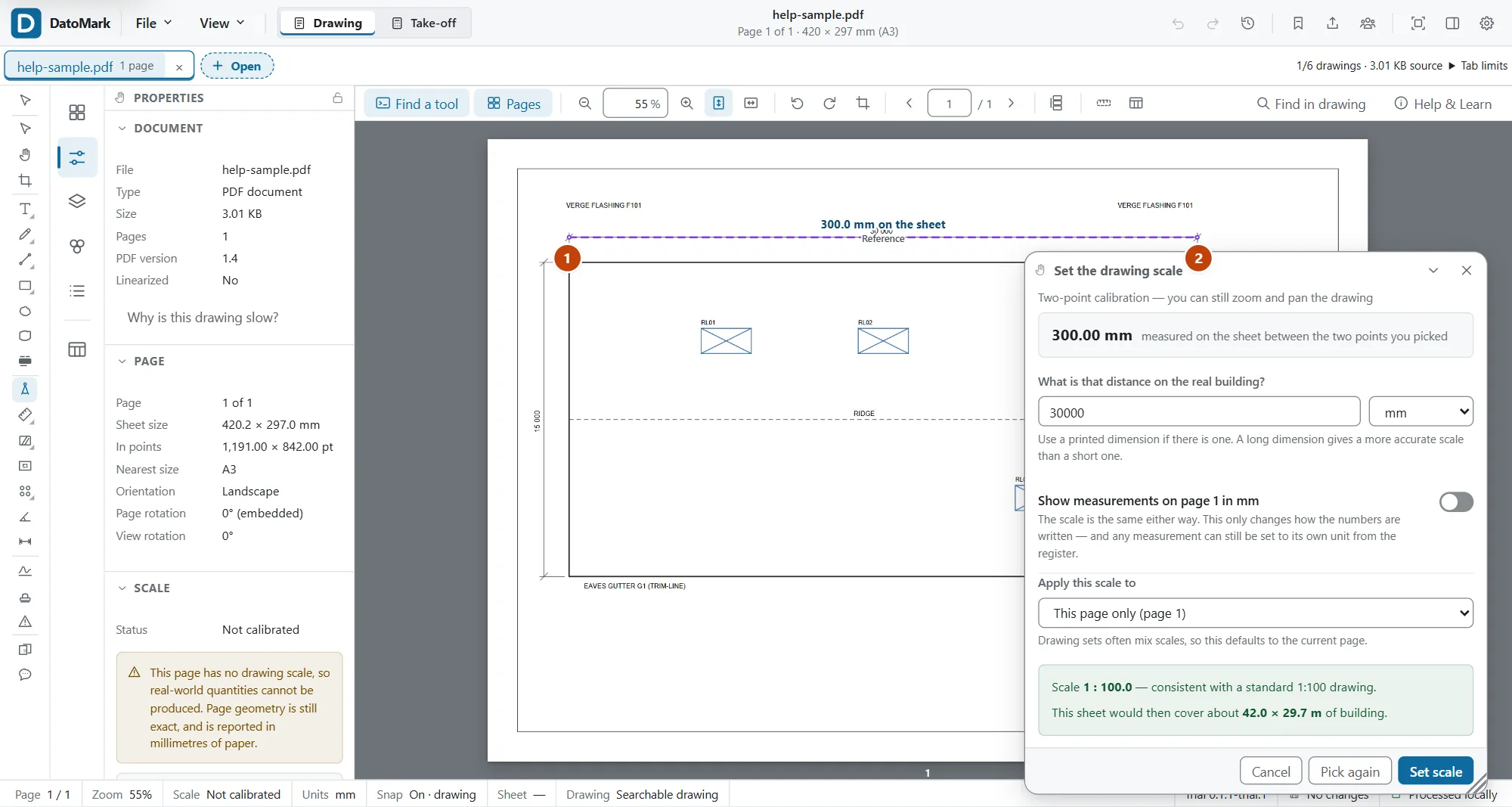
More on setting and checking the scale
4. Measure something
- Press L for Length, click one end of a run, then the other. The reading follows the cursor.
- Try A for a rectangle area, or C to count items by clicking each one.
- Made a mistake? Ctrl+Z undoes it, and the whole history is in the Action log (the clock button at the top right, or Ctrl+Shift+H) if you need to go further back.
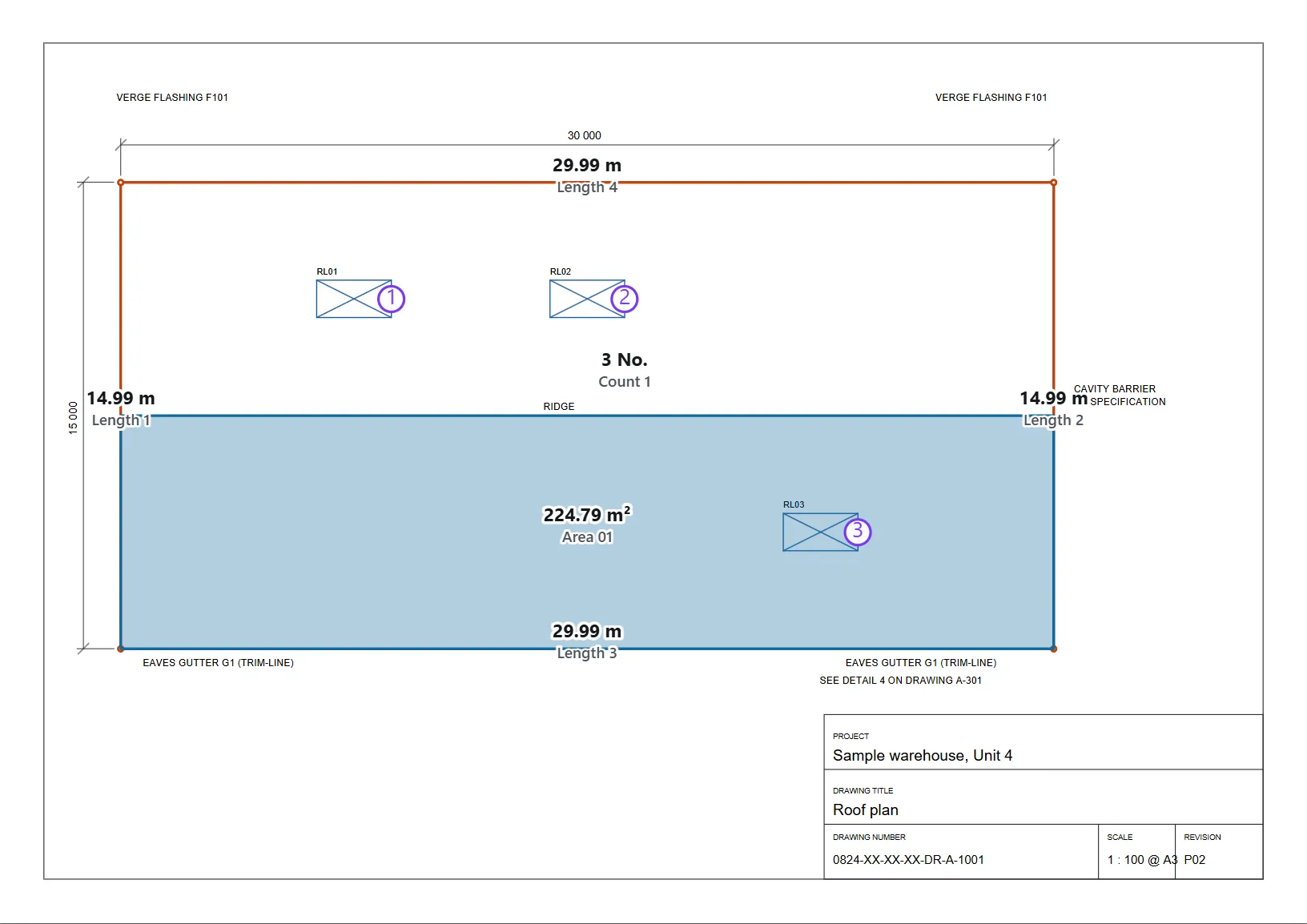
5. Put it in a group
- Open the Groups panel and make a group, for example “F101 Verge Flashing”.
- Pick the group so it’s the active one, then measure. Everything you measure goes into it and adds up.
- Click Take-off at the top of the window to see the bill: one line per group, with the total.
6. Get it out
In the take-off, choose Export. Pick an Excel workbook if someone is going to price it, or a PDF report if it’s going to be read. The export shows the working behind every quantity, so any figure can be checked by hand.