Do a Job · Everyday · 5 min
Mark up a drawing
Text, shapes, clouds, highlights and callouts, how to change how they look, and how to move, copy and undo.
Markup is anything you draw on the sheet that isn’t a measurement: notes, clouds, arrows, highlights. It’s kept alongside the PDF and never changes the original.
| V | Select: click to pick, drag a box to pick several, drag to move. |
|---|---|
| H | Pan: drag the sheet around. |
| T | Text: click and type. |
| P | Freehand. |
| R | Rectangle. |
| Ctrl+A | Select everything on this page. |
| Delete | Delete the selection. |
- Press T, click where the note goes, and type it.
- Click anywhere else, or press Ctrl+Enter, to keep it; Escape throws it away. Press V and click the note to select it again.
- Drag it to move it, or change its colour and size from the bar at the top.
A walk-through inside DatoMark Walk me through: Add text (2 minutes, on a practice sheet)
The bar over the text
While you type, a little bar floats over the text: A− and A+ for the size, a few colours, and ✓ (Done) and × (Cancel). It’s the same bar when you change a note that’s already there (double-click it) or change words that are part of the drawing, and a new size or colour you choose is part of the same change, so one Undo takes the words, the size and the colour back together.
The first three colours are the ones your text has most often been in, so the colours you really use are under your hand; the other three are the standard colours, and the one the text is in now is marked. Both are your choice in Settings › General: you can turn the bar off (it becomes just Done and Cancel), or turn off putting your most-used colours first, and Forget the colours it remembers starts it again.
Highlighter, Line, Arrow, Ellipse, Polygon, Polyline, Text with Leader and Revision cloud are all on the tool rail and in Ctrl+F. Hover over a tool to see its name and its key. The revision cloud has one button; whether you draw it point by point or as a box is the Drawn choice in the bar above the sheet. Hold Ctrl while drawing a line or a polyline and it will join onto the end of another line you've already drawn.
Arrows and text that point at things
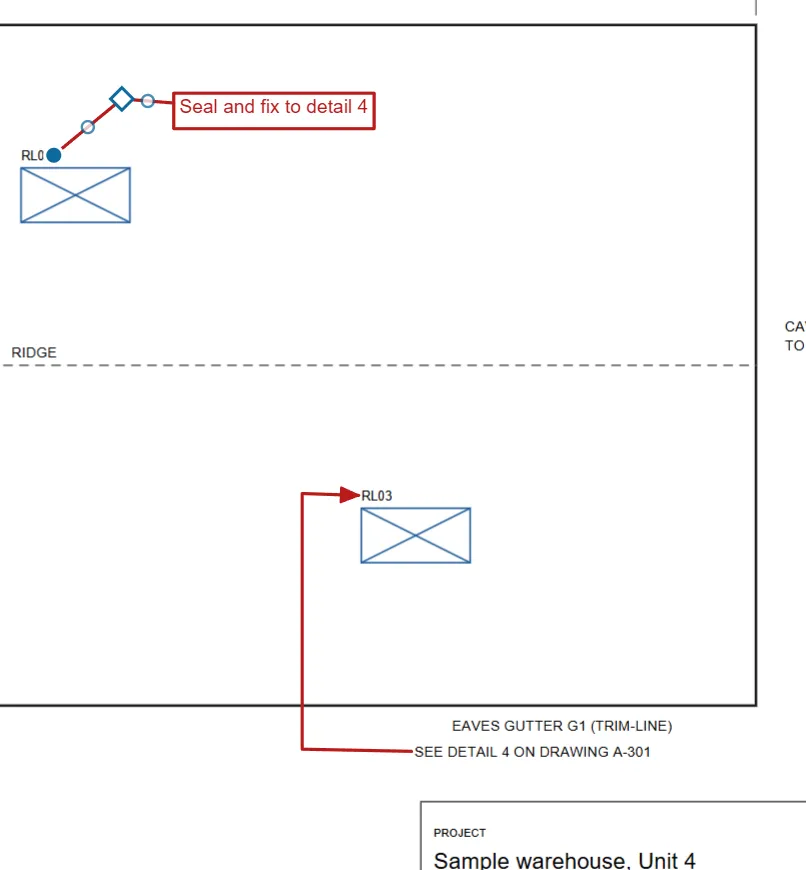
Arrow goes from where you click to what it points at. Arrow (Polyline) is for when a straight one would cross other work: click where it starts, click each bend, and finish on the thing it points at; the head goes on the last point. Text with Leader does the same with words: click what it points at, click each bend, finish where the words should go, then type.
Finishing, and cancelling
- Right-click part-way through a shape means “that’s all of it”: the points you have clicked are kept. An area or a cloud is closed; a run or an arrow is left open. Enter and double-click do the same.
- Escape means “never mind”: the unfinished shape is thrown away and the tool is put down. A switch in Settings keeps the tool in your hand instead.
- Backspace takes back the last point you clicked.
- With nothing started, a right-click opens the menu as usual, and the middle button always drags the sheet.
Landing exactly beside words
Hold Ctrl (Option on a Mac) while you place an arrow or a leader and the point jumps to the middle of the side of the nearest words that faces it, just outside them. The words are outlined first, so you can see which ones. It needs real text on the sheet: a scanned drawing is a picture of words and has none.
Change how it looks
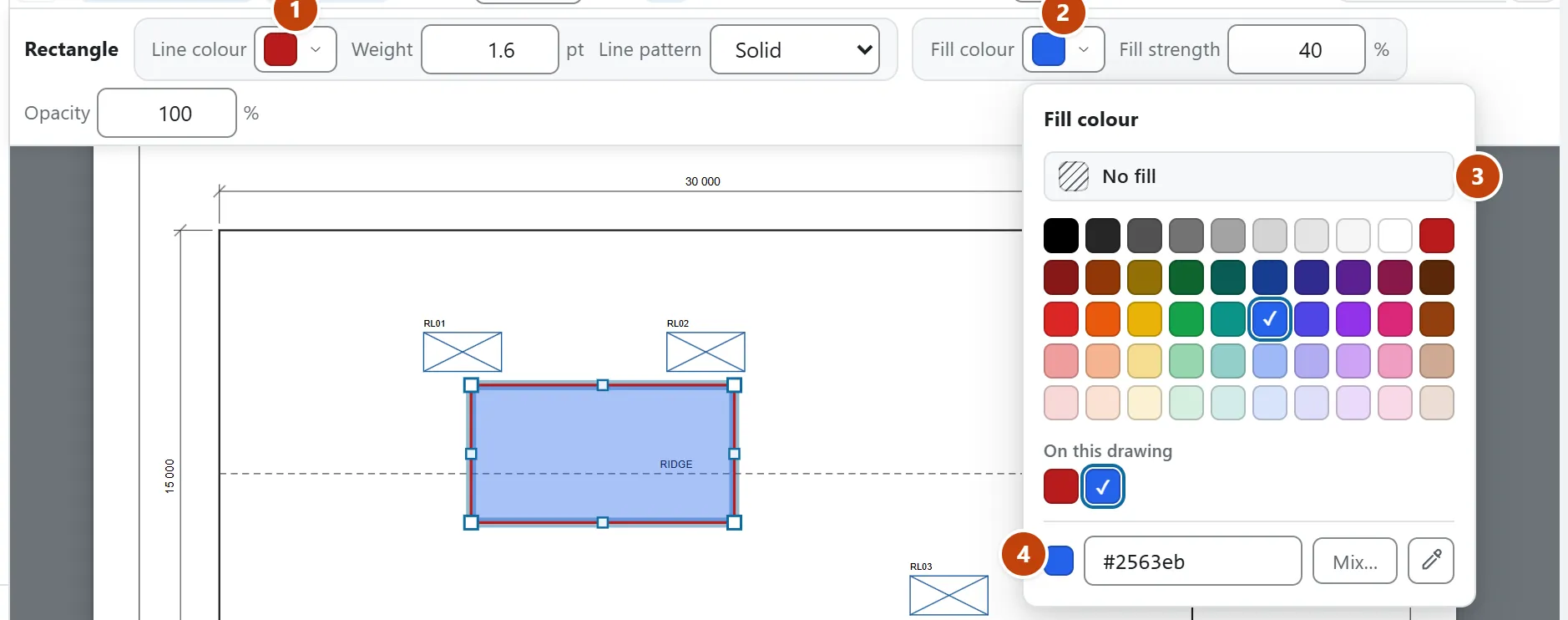
Select something and use the bar across the top (colour, weight, pattern, opacity and so on), or the Properties panel. Set it before you draw and the next one uses it.
A colour button opens a small panel: click a colour and it’s applied, with No fill in the same panel for a shape's inside. It lists the colours already on this drawing and the ones you used last, takes any hex code, and has the eyedropper where the browser has one.
Rotate an added text note
Right-click an added text note and choose Rotate text left 90° or Rotate text right 90°. Undo reverses the turn. This applies to added notes, not source-PDF text replacements or text with leaders. The typing field remains upright while editing; the saved note keeps its rotation.
Move, copy and paste
- Drag a selection to move it, or press Ctrl+M for Move the selection with the keyboard.
- Ctrl+C and Ctrl+V copy and paste. Ctrl+Shift+V is Paste in place: it goes in exactly the same position, on another page for instance.
- Place a copy… puts copies at a spacing you choose.
- Clipboard… shows what’s on the clipboard before you paste.
Revision clouds
A cloud is one idea with a choice: drawn by clicking round the area, or by dragging a box. Use it to mark a revision. The compare tool can make clouds for you from the areas it finds.